How to Get and Equip Guards in 2 Player Raid Tycoon
Last updated:
Recruit guards with tickets, assign your owned guards through MY GUARDS, and use cash to build a Guard Tower and buy a Wall Guard.
Quick Answer Overview
One Guard Ticket costs 25 Gems, and ROLL 1 spends one ticket for one random guard. Open GUARDS → GET GUARDS to recruit, then select an owned guard in MY GUARDS and use EQUIP. AUTO rolls consecutively until you press STOP or run out of tickets. For a Wall Guard, build the $100,000 Guard Tower, then buy the $40,000 Wall Guard. Duplicate copies accumulate; deletion cannot be undone.
Get Tickets and Recruit a Guard
You need one Guard Ticket per random guard. Buying a ticket adds it to your balance; use ROLL 1 afterward to recruit.
Find reward tickets
Check the free-ticket countdown in GET A GUARD.
Stay in the current server to unlock Gifts → Play Rewards. Claim an eligible package when it shows Ready! and Claim; some packages include a Guard Ticket. See the rewards guide for the other reward menus and their conditions.
Tickets also appear among the reward wheel prizes. A spin is a chance at a prize, so buying a ticket directly is the straightforward choice when your goal is one recruitment.
Buy a ticket for 25 Gems
Open GUARDS, then select GET GUARDS in MY GUARDS.
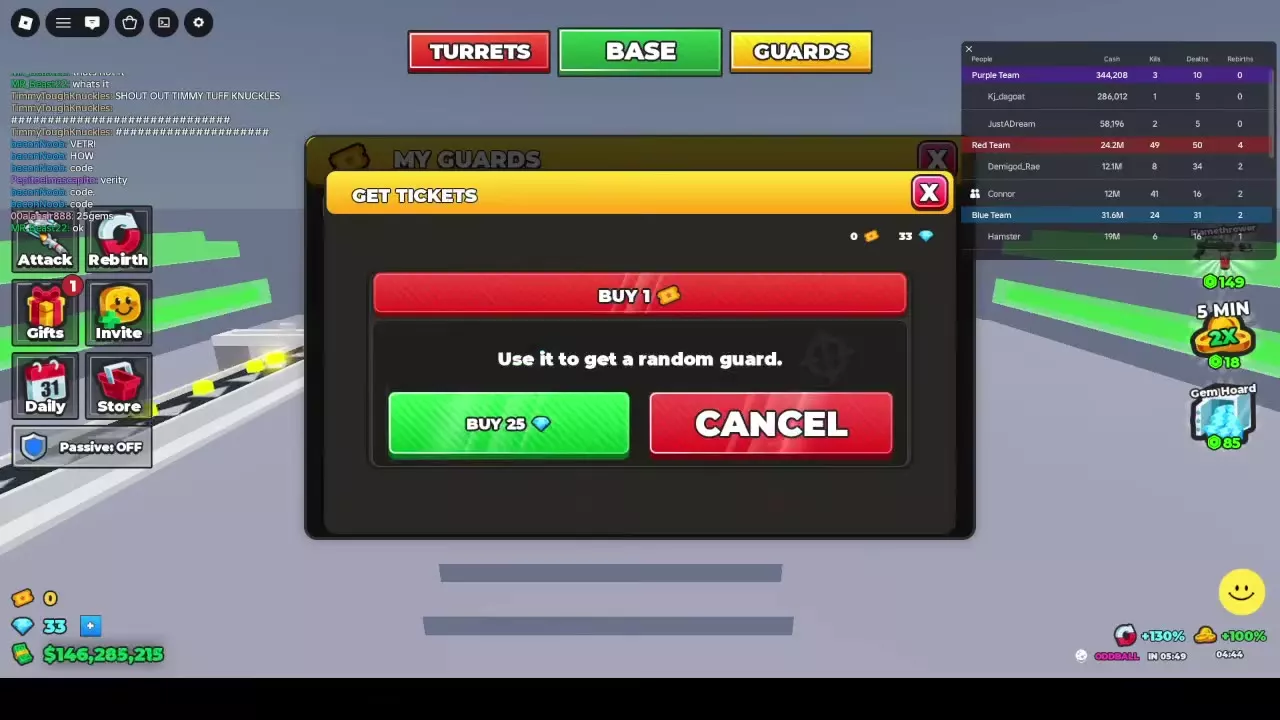
In GET A GUARD, select BUY 1, priced at 25 Gems.
In the GET TICKETS confirmation, select BUY 25 Gems to purchase one ticket, or CANCEL to back out.
Return to GET A GUARD with the added ticket.
You need at least 25 Gems for this purchase. For ways to obtain them and choose between tickets and spins, see the Gems guide.
Recruit and confirm
Open GUARDS → GET GUARDS with at least one ticket.
Select ROLL 1 to spend one ticket and reveal a random guard.
Select CONFIRM to return to MY GUARDS.
Your recruited guard stays in MY GUARDS. You can also receive another copy of a guard you already own. For individual chances and attributes, use the guard roster and recruitment odds.
Use AUTO and Stop Consecutive Rolls
Select AUTO on the recruiting screen to keep recruiting with your available tickets. Each roll spends another ticket and adds another random guard to MY GUARDS.
Select STOP when you want to end automatic recruiting and save your remaining tickets.
When the ticket balance reaches zero, GET TICKETS appears.
Use SKIP REVEAL to skip the reveal animation. It is an animation shortcut, not a better-odds or guaranteed-rarity option.
Use ROLL 1 when you want to inspect each result before spending another ticket. Use AUTO when you have decided to spend several tickets consecutively.
Equip Guards and Check Their Posts
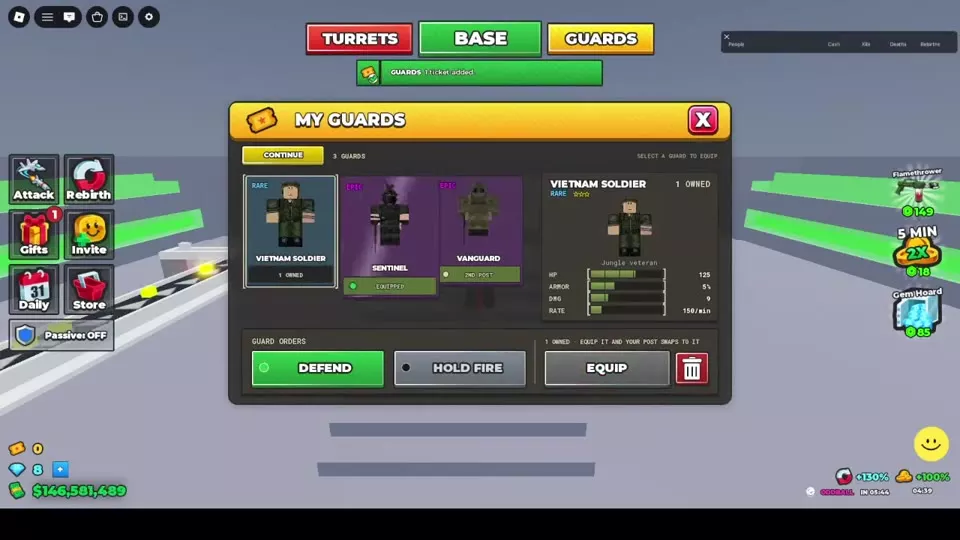
Open GUARDS to view MY GUARDS.
Select a guard you own.
Select EQUIP. The post's appearance changes to match the equipped guard.
Check the card for EQUIPPED or a post label such as 2ND POST.
To remove an assignment, select the equipped guard and use UNEQUIP.
Multiple guards can have active assignments. For example, a two-post setup can show Sentinel as EQUIPPED and Vanguard as 2ND POST. Read each card's status when checking your setup.
A first Noob recruited into an empty roster can already be marked EQUIPPED when you return to MY GUARDS. Check that marker before looking for another equip action.
The GUARD ORDERS area also provides DEFEND and HOLD FIRE controls. For help choosing among guards you own, compare the guard stat tiers for base defense.
Build the Guard Tower and Wall Guard
The Wall Guard uses a cash construction route beside your base wall.
Find the GUARD TOWER purchase pad beside the wall and step onto it with $100,000 cash available.
After the tower appears, find the newly unlocked WALL GUARD pad beside the tower and metal ladder.
Step onto WALL GUARD with another $40,000 cash available. The purchase pad disappears and an armed guard appears on the wall.
Climb the nearby metal ladder to reach the wall-top walkway and guard.
Budget $140,000 cash for these two purchases together. That total covers the Guard Tower and Wall Guard only, excluding other construction. If you have less than $40,000 left after building the tower, the Wall Guard pad remains red and stepping on it will not complete the purchase.
Use the base defense guide to plan the surrounding walls, doors, and other defenses.
Manage Duplicate Guards and Deletion
Recruiting a guard you already own adds another copy to its owned count. Use the counts in the deletion dialog to distinguish extra copies from your last one.
Select the guard in MY GUARDS.
Open its trash-can or deletion control.
In DELETE GUARD?, read OWNED and DUPLICATES before choosing an action.
Select DELETE 1 to remove one copy, or CANCEL to keep it.
Deleting the last copy removes that guard's card from your owned list. A dialog showing 1 OWNED and 0 DUPLICATES means DELETE 1 would remove your only copy. Deletion cannot be undone.
The menu also includes DELETE DUPES. For controlled cleanup, use DELETE 1 and check the remaining count after each deletion.